User Interface Overview
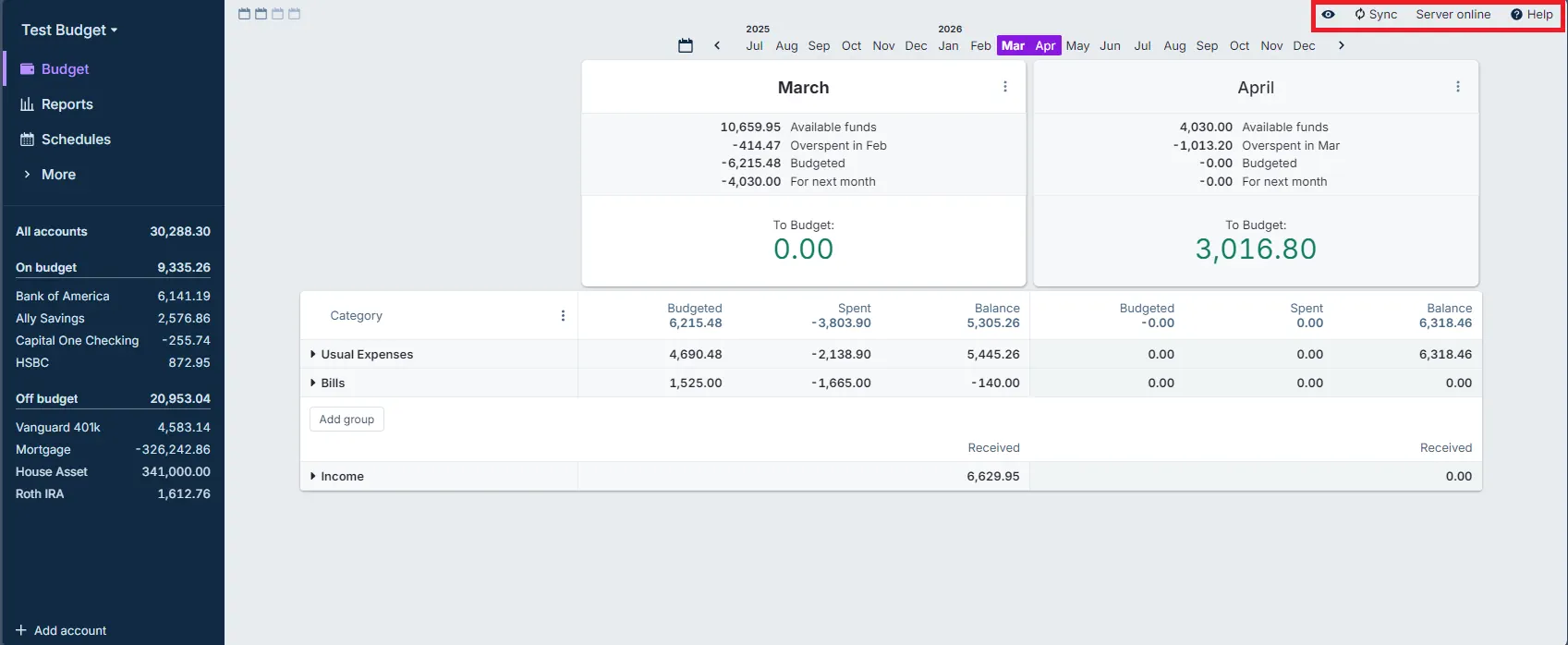
The user interface is divided into three parts:
Standard on most screens:
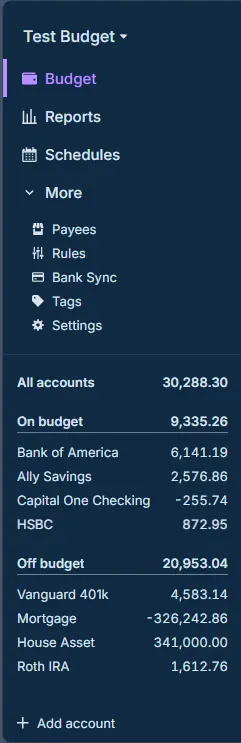
- The left sidebar lets you easily switch between the various views, such as Budget, Reports, and Accounts.
- The server status (if used) is shown in the upper right corner (red box in the screenshot).
- The content of the rest of the interface depends on the view you have chosen in the sidebar. This screenshot shows an example of a Budget view.
Top Right Corner
- The eye icon will scramble the numbers on the screen. This is useful if you need to report a bug to the Actual team but want to keep your numbers private. There are some caveats to this, so please read Scramble and Hide Data in the Tips & Tricks guide.
- Clicking on the refresh icon will force a sync of your local file to the server. Note: it does not perform a bank sync.
- Server status: Server online shows the server is connected, Server offline shows the server is disconnected, and No server shows if you are not using a server. If you click on this text a server menu pops up.
- The farthest right item is a Help menu.

The Sidebar
From the sidebar, you have easy access to all Actual functions.
- Access to your Budget, Reports and Schedules.
- Less used functions are found under More, like managing Payees and Rules; this is where you find the software settings.
- The sidebar also holds all of your accounts, both on budget and off budget; these will display in a list under their respective heading.
Most of these will we cover later in the tour.